Desktop application manual#
The desktop application is designed for exploration, demonstration, and operator-friendly monitoring. It is especially useful when a partner team is still deciding which fields matter for a machine, a workflow, or an HMI.
Application entry point#
Run the application from the repository root.
python app.py
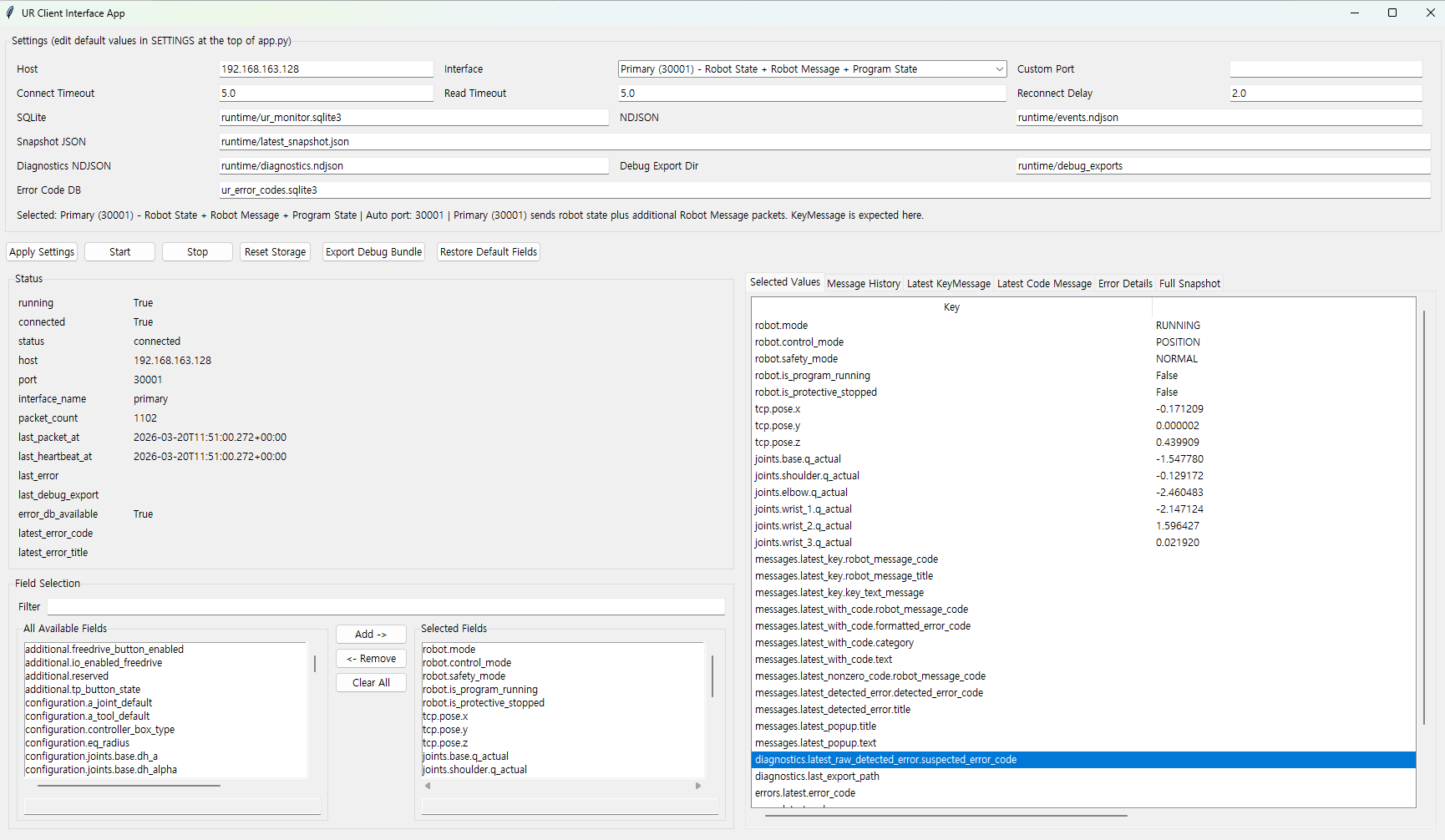
Main application window placeholder. Replace this file with your own screenshot to show your branded setup.#
Interface selection#
The interface selector is intended to remove guesswork for new users. Instead of remembering ports immediately, a user can start from a named profile and then connect.
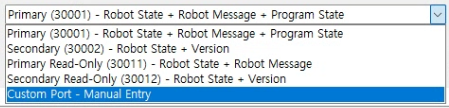
Suggested screenshot: the interface dropdown with all preset options visible.#
When documenting your own deployment, this is a good place to show the preferred default profile for your team.
Live status and connection confidence#
The application shows whether the client is running, whether it is connected, and whether packets are still arriving. That makes it easier to distinguish between “the app is open” and “the client is actively receiving interface data.”
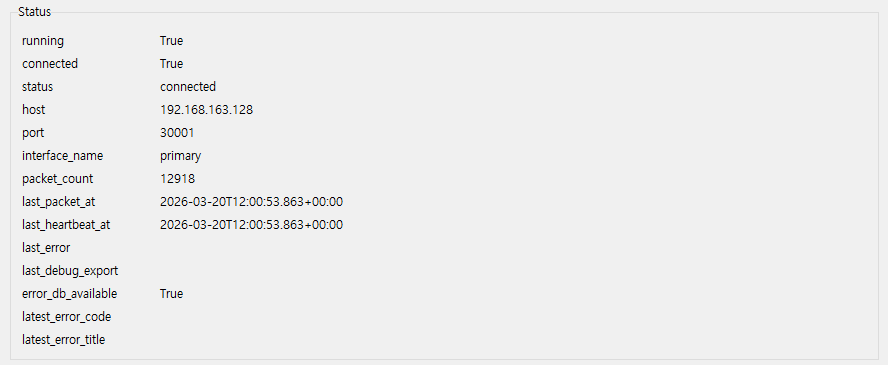
Suggested screenshot: connection status, packet count, and last update indicators.#
Value selection and field discovery#
One of the most useful app features is the value selector. It lets you browse the available field paths and keep a focused view of the ones that matter for your machine or your product.
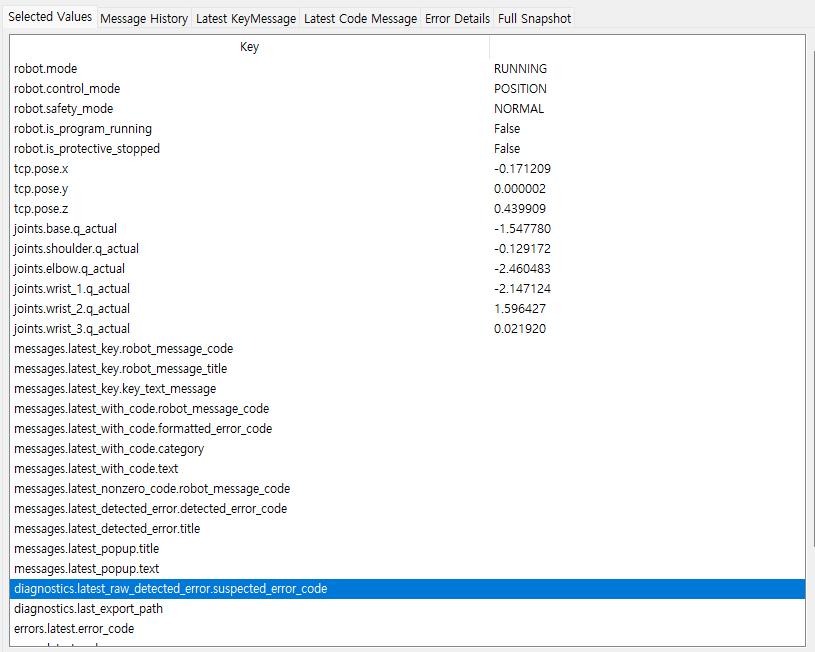
Suggested screenshot: a realistic set of selected value paths and the corresponding live values.#
A practical pattern is to use the GUI as a discovery tool and then move the chosen paths into your Python code.
Message history#
The message history view is where partner teams can inspect message categories, codes, textual content, and timestamps in a more human-friendly way than raw packet dumps.
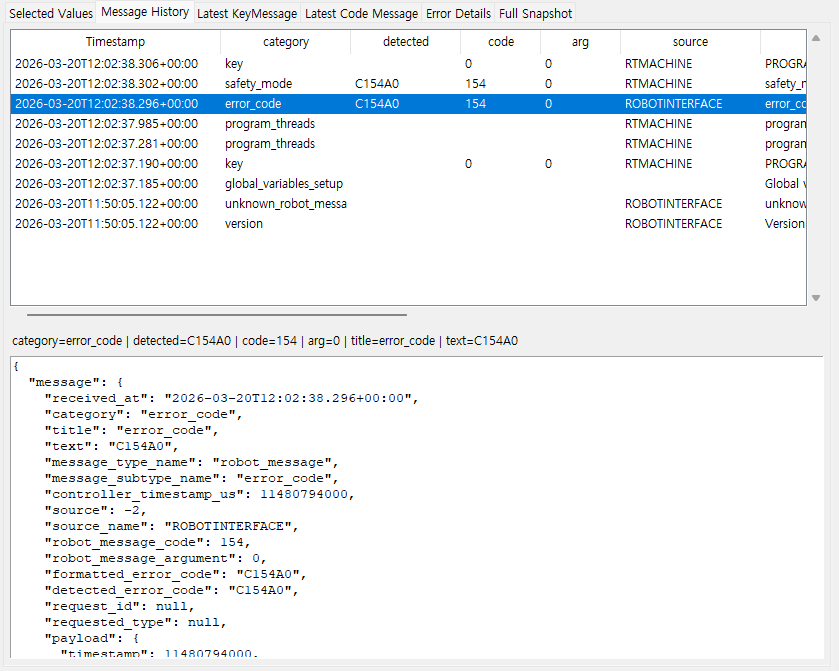
Suggested screenshot: a sequence of robot messages with different categories visible.#
This is useful during integration reviews because it helps teams discuss what actually appeared on the interface, not only what they expected to appear.
Error detail panel#
When the client detects an error code, the application resolves it through the local database and shows the result as the four end-user fields used by the project.
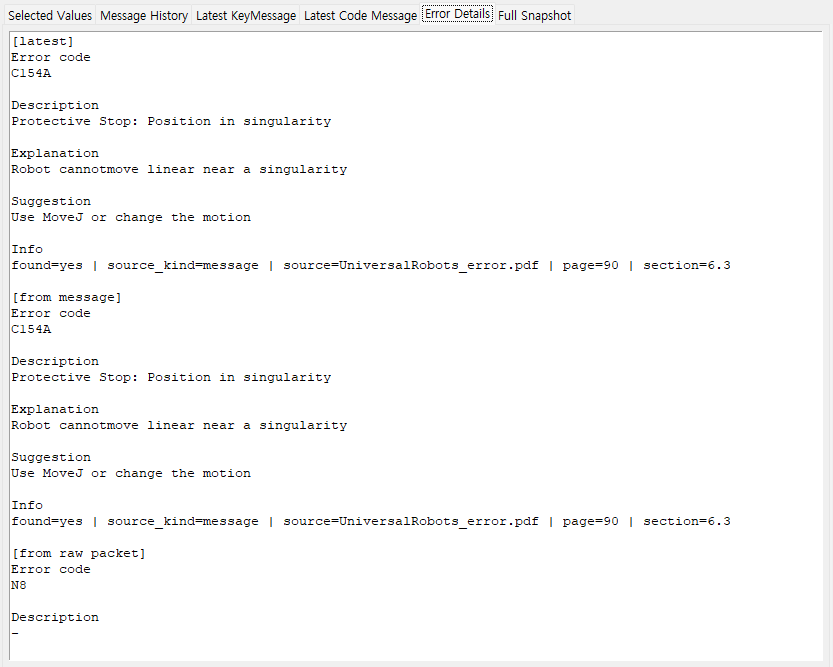
Suggested screenshot: an error detail view showing Error code, Description, Explanation, and Suggestion.#
Using the GUI together with the API#
The app and the Python library are meant to reinforce each other.
Use the app to discover fields, inspect messages, and validate expectations.
Use the API to automate those same fields inside your product.
Use the error lookup in both places so operators and developers see the same meaning for the same detected code.